Let’s face it: today almost every company has a website – your company too right? Despite your beautiful business cards and email signature, almost all visitors find your website through search engines and ads. To help website owners and administrators with their online presence, Google developed its Search Console. But what exactly is Google Search Console (GSC) and how do you get started? You can read that in this article! I also show you which reports and tools are useful for your website!
Google Search Console is a free service and set of tools from Google to show you how it “sees” your website. It’s also formerly known as “Google Webmaster tools” or “Webmaster tools”. With GSC you can:
In short: with the Google Search Console you can make your site easier to find and stand out more in Google search results. Great for SEO! Its use is free, but you must create a Google account.
First of all, you need a Google account. If you don’t have one yet, you can create one here. After logging into your Google account, go to your Google Search Console here. But you are not there yet. You still need to add your website property.
First, you will be asked to enter the URL of your website. A verification takes place in the next step.
This can be done in the following ways:
Let’s discuss one of these ways in more detail: verification using your Google Analytics account.
Do you use Google Analytics for your site to see who visits your site? Then you can verify your site using the Google Analytics tracking code.
Have you met these conditions? Then it’s time to verify everything.
Note that other administrators of your Google Analytics account can also access your site’s data in Google Search Console.
If this verification, or one of the other verification options, has been successfully completed, you will be able to access GSC.
Unfortunately, it takes a few days before GSC has examined your website enough to fill the tool with data so that GSC can start working with it.

If Google Search Console has collected enough data about your website, usually a day or two, you can get started. On the left you see the following menu items:
Here you also see that you can switch between your different websites. Provided you have one of course.
Let’s dive into the menu items one by one.
The “Overview” page of Google Search Console (Figure 1) summarizes your website’s performance in Google Search. This page gives you insight into the most important statistics and shows (error) messages for your “property” (that is how Google Search Console describes your website).
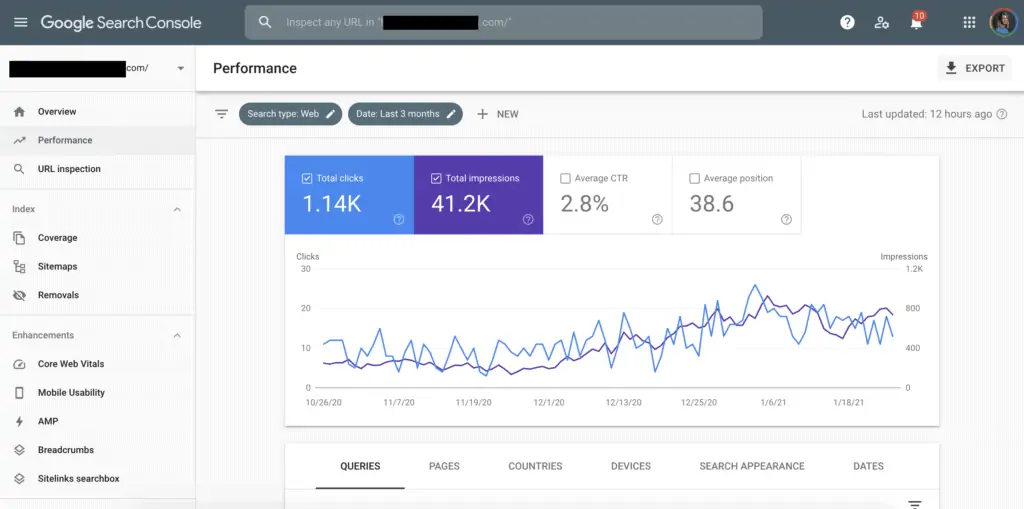
This menu, see figure 2, shows you the statistics that can give you insight into how your website is displayed in the Google search results.
With URL inspection you can request information about a specific URL of your website. This information goes deeper into how your website handles crawling and indexing.
Is the URL indexed? Can Google crawl the website? This is easy to check here.
So this tool shows you how Google sees the URL, also on mobile devices.
What if you have changed your content significantly on a particular page? Or you have done a restyling of your website. This request causes Google to view this page. Very important for online marketing agencies who want to share new content from their company.
Indexing consists of the submenus Pages, Sitemaps and Removals (and Video pages if your site has videos).
For the status of the indexation of your website and the underlying pages, including problem tracing, you can go to the “Pages” report. This report used to be called “Coverage”.
It splits your pages into two groups: Indexed and Not indexed.

The sitemaps of your website are actually maps for Google that makes indexing easier. You can submit these sitemaps in Search Console.
Do this by entering the URL where the sitemap of your site is located. You can have multiple sitemaps per site, for example, a separate sitemap for your blog structure.
(Tip!) If you use an SEO plugin like Rank Math or Yoast SEO, it will easily create a sitemap for you. Read more in my article What is an XML sitemap?
“The removals tool enables you to temporarily block pages from Google Search results on sites that you own, see a history of removal requests from both property owners and non-owners, and also see any URLs on your site that were reported as containing adult content.” – Google

The Google Web Vitals are a number of factors that Google will use to determine quality requirements. Within the Web Vitals of Google, you have three important statistics. These we call the Core Web Vitals. The Core Web Vitals are:
INP replaced FID (First Input Delay) as a Core Web Vital in March 2024. Uh. How do you say? I will explain that in this article: Core Web Vitals.
Google retired the Mobile Usability report in December 2023. Your website still has to work well on smartphones, because Google indexes the mobile version of your site. You can check mobile usability with Lighthouse in Chrome. If your website uses AMP pages, you will still find the AMP report in Search Console.
These reports can help you diagnose problems with the breadcrumbs displayed in search results.
The sitelinks search box was a search bar that Google showed under some search results. Google stopped showing it in November 2024 and removed the report from Search Console. You can leave the markup on your site; it does not cause errors.
The Search Console Security Issues report lists the security issues on your website that Google has identified. In addition, Google can also send you a notification if something is wrong with your site. This proactive approach of Search Console helps to prevent problems with your website before they even arise.
In this report, you can see which sites link, internal and external, to your site and, importantly, what link text they have. You can also see which websites are linked the most.
You can use this information for link building, among other things.
All in all, you can get a lot of useful and technical information from Google Search Console’s URL inspection tool. If problems are found, it is necessary to resolve them quickly. This way you ensure that the URL can score high as quickly as possible.
You have now completed the basic steps of Google Search Console. Do you need more help and want to use Google Search Console to increase your average ranking in Google or Bing search results? As an independent SEO consultant, I’m happy to help with an SEO Consult.